This is what I don't quite understand about the github atmosphere. How is it considered perfectly normal to introduce an application "...with enhancements" and not include a screenshot.
I think it's mainly a tooling issue—readme files are repo "homepages" by default, there isn't an easy way to inline an image in Markdown (nor should you want to), and people don't want to pollute a repo with binaries.
This is why I am disappointed GitHub has become the defacto standard. It's not clear what this is or even why this exists. And that seems to be the case with the vast majority of projects on the site.
There is something about the github itself, or the culture around it is the issue, since the problem seems so pervasive. I would prefer the site fosters better project information.
Compare github project pages to what you would find at the now defunct codeplex. The difference was night and day.
Even better, a bunch of my older repositories now have broken images since I had to host the images outside of Github for them to show up in the markdown, so I hosted them on Dropbox. Dropbox has since taken down public hosting of images (or changed the method in which you can do it) so they are all broken (and I"m too lazy/repos are too low traffic for me to bother hunting it all down).
You still have to host the images somewhere—they're not embedded in the document (which is what I meant by "inline"). Not that I think markdown should be able to embed images (that would be contrary to the whole point of the format), but it doesn't lend itself to easy, one-click (or few-keystroke) images.
Re: "You still have to host the images somewhere—they're not embedded in the document (which is what I meant by "inline")"
I still don't follow you; why is this an issue with markdown? Why do you see this as different than any other markup language (e.g, HTML)? Unless we're talking about something like Word documents, you'll have to host the image somewhere, which could be in your github repo. I still don't see why this is an issue.
That was written for DOS. It's not "Windows File Manager" just because it will run under Windows. That'd be like claiming apps written for Win32 are Linux apps because they'll run in Wine.
MSDOS Executive on the screenshot was part of early windows versions. In windows 3.0 it was replaced by File Manager (and Program Manager).
The program that you are thinking of is DOS Shell, which is part of MS-DOS 4.0 and higher, runs in text mode (optionally with custom VGA font) and it's UI behavior is somewhere half way between Windows' MSDOS Executive and File Manager.
I concede. I thought I was seeing all ASCII line drawing for the 'windows' in that screenshot, but in fact at least the upper right corner is actual graphics.
That takes me back. In the WinNT 4.0 days my NTFS hard drive would become so heavily fragmented that it would take Explorer over a minute to display folder listing as it hunted around for file icons and other metadata. And then Explorer would randomly decide to rebuild its icon cache a freeze up for another minute.
The built-in defragmenter did nothing to improve things.
Our idiot IT guy said I should compile less often.
I had to resort to WINFILE to do anything with the file system, at least until I convinced my boss to get me a Norton Speed Disk license.
And yet when Win2K came around I refused to upgrade. It'll be too slow and buggy, I figured.
Explorer performance issues have become one of my top annoyances in Windows 10. There's so many apps what want to hook themselves to provide context menu items, icon overlays or something else. If these apps are not responding in timely manner, Explorer gets really slow and figuring out the cause is not straightforward.
I always thought NTFS was declared to be relatively immune from fragmentation problems. That’s why there was no in-built defragmenting tool for NTFS-formatted drives until much later on.
> thought NTFS was declared to be relatively immune from fragmentation problems
The operative word there there is relatively. In terms of main file content storage it did (and still does) a very good job, especially relative to FAT's naive first-available-block allocation strategy, until the volume gets near-full. How much is "near full" very much depends on your local use cases (rules of thumb like "the larger of 10% or 20Gb" are banded about, but they are just myth-like guesswork at an old-wive's-tale level IMO as they are usually traceable back to times when volumes were much smaller and common data patterns vastly different).
Once volumes are near-full not much helps - this is still true for modern variants of NTFS, ext, and any other filesystem (I'm not counting filesystems with "active defragmentation" as that is essentially a filesystem plus a tool). Some have tweaks that help reduce the effects (NTFS being able to store small files in directory blocks directly for instance) but it is not practical to completely rid yourself of them especially in pathological cases. Furthermore once a file is fragmented it will stay that way until removed & replaced or acted upon by a defragment process on the filesystem, and deleting fragmented files may leave the free space around them a mess of small blocks so delete & reallocate may not help on a near-full filesystem.
Any filesystem that claims to be fragmentation free without a list of caveats attached to that claim is snake-oil.
The allocation strategy in use by the OS doesn't necessarily have any relation to the filesystem it is being used with. IIRC, NTFS being considered "immune" to fragmentation concerns had a lot more to do with a shift in the Windows allocation strategy at about the same time than anything in the filesystem itself.
The allocation strategy is generally part of the filesystem design, not the OS design. NTFS was properly designed with real use cases in mind to avoid fragmentation where possible. Earlier Windows filesystems (FAT) were designed to just do the job simply.
You can* use a more effective strategy with FAT* but you need to jump through some hoops as it doesn't have any built-in structure to help. It is far more practical to just ask your users to use a more modern filesystem, except for smaller removable devices where the issue is far less significant anyway.
>NTFS was properly designed with real use cases in mind to avoid fragmentation where possible.
Once said that NTFS was very properly designed (and still works fine after some 25 years with only a very few modifications and on relatively huge volumes) it does have a few "strange" characteristics.
JFYI, a strange case when there was apparently no solution (due to some queer placement of the NTFS filesstem structures), a 6 Gb file couldn't be stored contiguous on a 8 Gb USB stick (and of course FAT32 wouldn't have allowed a bigger than 4 Gb file):
> due to some queer placement of the NTFS filesstem structures
It isn't really queer: some core, regularly accessed, structures are deliberately in the middle of the filesystem to reduce head movements in the common use case of it being a single volume (or the most significant volume for the currently IO tasks) on a spinning-disk-and-floating-heads based drive. This essentially splits free space in two from the very start so an 8Gb volume is going to start with two ~4Gb ranges of unallocated space not one single 8Gb range.
ext* filesystems distribute group descriptors, superblock backups, and other structures, around volumes instead of keeping them at one end, for simialar reasons. See https://www.slashroot.in/understanding-file-system-superbloc... and much other online documentation. (though spreading the superblocks around isn't a performance thing, it is to reduce the damage potentially caused by localised physical disk corruption)
The queer part is software coupling itself so tightly with the storage layer such that it can't cope with a file not being physically 100% contiguous. The example in that link sounds like a virtualisation method trying to be very aggressive about optimising the mapping between guest disk access and physical storage (which might convey a small performance benefit) - if you are optimising like that then you are probably better off trying to use raw block devices rather than files on a host filesystem.
Well, the point is that after the 2000's some new hard disk like devices (including USB sticks and SSD's) have been available and became common in use, making most if not all provisions that were "smart" for rotating media largely meaningless, and the size of rotating media increased so much that the "around the middle of the filesystem" has been a largely moving target.
The "default" settings (including the placement of the $MFT on cluster 786432 or 0xC0000 if you prefer) is clearly something that made a lot of sense on a given size of volume, but having it "hardcoded" as default for any volume larger than around 5/6 GB makes not any real sense, hence I stand by my "queer".
As seen in the given reference, it is possible (and relatively easy) to "move" the $MFT (and other NTFS filesystem structures) to an "earlier" address on the volume, and the NTFS (which as said has been very, very well designed) works and performs just fine.
On the other hand, moving it near the actual "around middle" (on rotating disks) is far from being easy, even nowadays.
What I was pointing out is that after all these years the "format" tool has not evolved allowing directly these kind of changes/offering the user the possibility to finer tune the file system.
Either you never used FAT* or were very very lucky! It (and other old, naive, filesystems) used a pure first-available-block strategy that almost invites pathological fragmentation especially in a multi tasking (or worse, multi-user) environment.
Also, I've seen ext* filesystems just as badly fragmented as NTFS ones in similar environments.
One key problem I've seen on NTFS volumes in the past is with those that were converted from FAT (IIRC old Windows NT installations would do this even for fresh installs: install on FAT* for the first stage then convert to NTFS before the second) - the conversion process didn't move files around when converting to 4KByte blocks from larger ones so left a small chunk of free space after every file.
> rewritten terabytes of data over the same blocks
It isn't about the amount of data throughput or the reuse of blocks: it is how files are allocated space as they grow, particularly when there is concurrent activity, and how free space fragments as files shrink or, more likely, are removed.
> What kind of environment is that?
Busy near-full write-heavy multi-user file servers particularly. Multitasking exacerbates the "how files grow" issue, multiple users exacerbates both, and multiple concurrent users multiplies the issue further, being near full means that data fragmentation countermeasures are circumvented because due to worsened free-space fragmentation (all the space left is in small units).
Ignoring a few pathological cases (that are usually unrealistic thought experiments), if the filesystem never gets particularly full then neither NTFS nor ext* are likely to fragment significantly. But in the circumstances mentioned above both are just as likely to. Their key mechanic for avoiding data fragmentation (keeping some free space after files where possible to allow for growth) is very similar, other technicalities where they vary more widely (like storing small objects in directory structures directly or the MFT) have an effect, but a much smaller effect than that attributable to the methods they share.
Of course even some near-full multi-use volumes aren't going to fragment significantly at the filesystem level. If a volume is hosting large database files then they are likely to be reasonably contiguous from the filesystem's point of view and fragmentation issues within the data files is massively more significant. Also if most of your concurrent users are only reading (perhaps a media archive system maintained my a small team, perhaps one person, or just at most one person at any given time usually, but accessed by many?) they can be ignored from a fragmentation PoV (readers aren't going to affect data layout unless you have active writers and some exotic MVCC arrangement going on at the filesystem level).
It is neat and i like how it remembers the sizing and open folders, but it really shows how much Microsoft has neglected Win32 and MDI in particular: the theme is still the same used 12 years ago in Vista and while i am not a fan of the Win8 nor the Win10 theme (my favorite theme is the classic theme), the inconsistency sticks out like a sore thumb. And of course beyond the lack of a visual update (that would take perhaps 1 hour to fix), there are visual glitches like this one: https://i.imgur.com/Vfm5ndc.png (notice the black corners on the window at the right - ironically they happen because of the non-rectangular shape of the titlebar, which would not be the case if the Windows 8 or 10 themes were used since those are rectangular). And i suppose at this point it doesn't make much sense to mention missing features, like double clicking the top edge to maximize a window :-P.
Which sucks because i always liked MDI applications. I know that some studies or whatever have shown that novices often get confused, but personally i find the idea of having a "group" of windows inside the application that manage them to make more sense - especially for visual stuff, like image editors where i can open two views of the same document in different zoom levels. And i also find being able to move and resize the subwindows in any way i want (not limited to splits and such which i find more annoying and a waste of space than helpful).
Having said that i always always disliked, from the first day i saw it, the visual change from Windows 3.1 to Windows 95 to make minimized windows look like tiny titlebars (they were called buttons but there is nothing button-y about how they ever looked in any version of Windows from 95 to today) instead of icons. mIRC adding a taskbar-like panel was a much better idea (you could say that novices would again be confused, but from what i remember from the late 90s and early 2000s, that didn't stop people from using mIRC :-P), but just sticking with icons would be fine too (i think icons inside the MDI area were supposed to be used for something else that i don't remember now, but i do not think any program ever used that).
The Win95 styling of the toolbar and some other oldie-looks are likely due to a missing application manifest, not because Win32 doesn't support the newer visual styles.
I was talking about the MDI windows (those inside the client area, the subwindows), not the toolbar. The MDI windows, regardless of manifest, use the Vista theme since their look hasn't been updated for ~12 years.
This is actually something that has been reported to Microsoft before (here is a link for one of the feedback entries linked in one of the issues in the WinFile repository: https://aka.ms/Bjiosw ).
> i suppose at this point it doesn't make much sense to mention missing features, like double clicking the top edge to maximize a window :-P.
wat? By "top edge" do you mean "it's showing a resize cursor"? And if yes, is there a difference between double-clicking there and doubleclicking the titlebar? Genuinely curious.
--
> i also find being able to move and resize the subwindows in any way i want (not limited to splits and such which i find more annoying and a waste of space than helpful).
I've been mentally playing around with "what if there was a reality where everything interacted properly and we only needed to worry about designs having good look and feel" for a long time, and tiling makes sense to me as an general idea - it's current implementations, particularly linux windowmanagers, that are disasters-squared. What is it about the freedom to move windows anywhere that is particularly appealing? I ask because I'm trying to get a bit of design perspective.
Hm. Thinking about it, the ability to shove things wherever you want does make a lot of sense generally speaking. I think I'm trying to rank the un/usability of tiling versus MDI window grouping (which I can see breaking down outside of carefully scoped situations).
(Maybe ignore this bit. I tend to mentally ramble to myself about UX all day.)
--
> Having said that i always always disliked, from the first day i saw it, the visual change from Windows 3.1 to Windows 95 to make minimized windows look like tiny titlebars
Interesting! I'm curious why. The different aesthetic of a bigger icon? (The task buttons did also have an app icon)
FWIW, the iPhone kind of won pretty big using the same approach.
I think I've seen the mIRC task panel, it resembles tabbed browsing somewhat.
Personally I wish I could switch to the correct focus in a given open app from a central location instead of having to focus the app then switch to whatever, but that's just me.
--
> (i think icons inside the MDI area were supposed to be used for something else that i don't remember now, but i do not think any program ever used that).
I'm guessing that infrastructure was primarily built out at all for Program Manager.
I've seen some other old applications (I think for online services?) that also did the minimized-MDI-windows-as-icons thing.
> wat? By "top edge" do you mean "it's showing a resize cursor"? And if yes, is there a difference between double-clicking there and doubleclicking the titlebar? Genuinely curious.
Yes, in Windows since 8 (i think) if you doubleclick on the top edge (where the mouse cursor becomes the top/down arrows) you maximize the window vertically (its width remains the same as it was).
> What is it about the freedom to move windows anywhere that is particularly appealing? I ask because I'm trying to get a bit of design perspective.
It is really what you wrote: being able to put things wherever i like and at the size that i like them (the size bit is important since with tiling you can only resize on one dimension), but also because i want to be able to overlap things when that makes sense.
> I think I'm trying to rank the un/usability of tiling versus MDI window grouping (which I can see breaking down outside of carefully scoped situations).
I think that it isn't that different from regular tiling vs floating/overlapping window management (regardless of MDI). But this might be my own bias since i also prefer overlapping window managers to tiling window managers for similar reasons.
> Interesting! I'm curious why. The different aesthetic of a bigger icon? (The task buttons did also have an app icon)
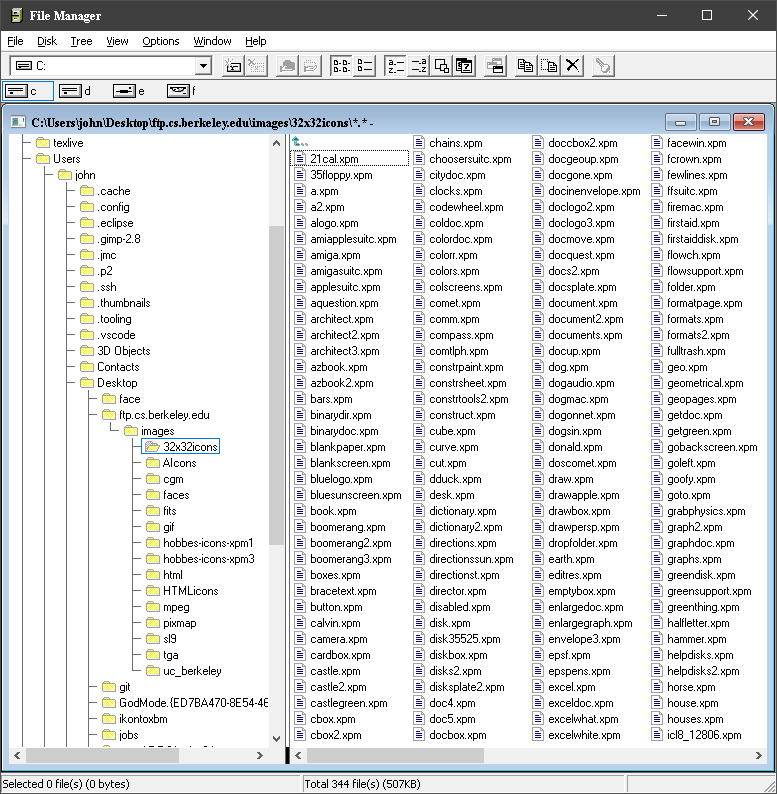
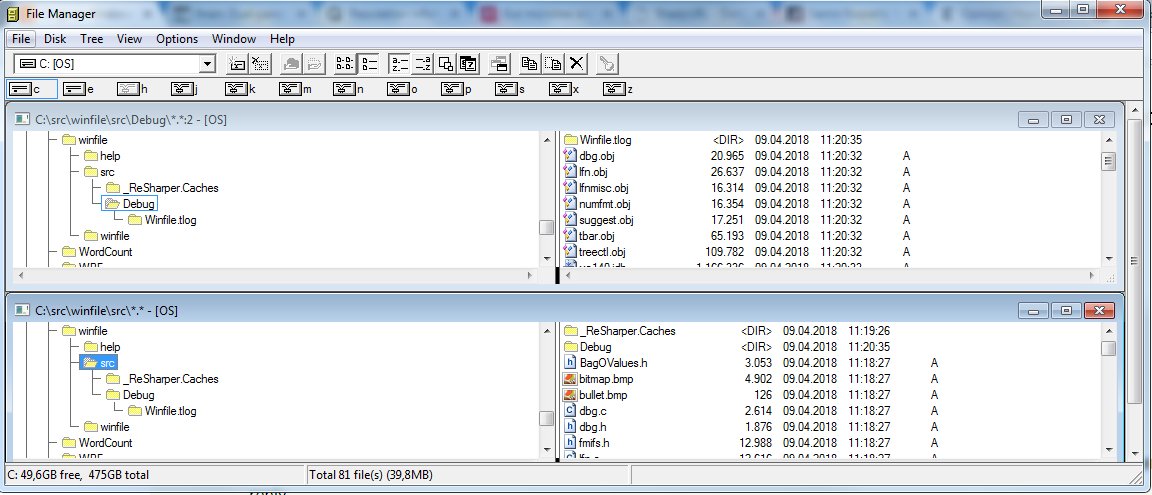
Note that i'm talking about the MDI subwindows here, not the taskbar at the bottom of the screen. Here is an image showing what i mean:
On the left side is the Windows 3.1 File Manager and on the right the linked File Manager (basically the same program but improved a bit) running in Windows 10, in both cases with three MDI subwindows open, two of them being minimized at the bottom left area of the main window.
On Windows 3.1 the minimized MDI subwindows have a clear icon showing what exactly they are and a clearly visible caption. On Windows 10 the minimized MDI subwindows use a "tiny" framed appearance instead of an icon, the caption is not visible at all and you basically have no idea what you are looking at. Note that on Windows 95 and NT4 (which used the same look/theme) things were slightly better, but not much:
Personally i think the bigger and clearer icon, the caption below the icon and the lack of a border/titlebar/buttons/etc that in Win95 and later only waste space is superior both from a visual and from a practical perspective.
> I'm guessing that infrastructure was primarily built out at all for Program Manager.
In Windows 3.1 everything used that, even the Program Manager was an MDI application and the groups were just minimized MDI subwindows. In Windows 95 they changed the look for the minimized subwindows to use the look i show in the shots above instead of using icons, but i remember reading in the win95 visual design guidelines about icons in MDI windows that were supposed to be about something else. However i haven't seen any program using that and the code that previously (in Windows 3.x) created minimized windows as icons, in Win95 created minimized windows as those long bars.
> Yes, in Windows since 8 (i think) if you doubleclick on the top edge (where the mouse cursor becomes the top/down arrows) you maximize the window vertically (its width remains the same as it was).
IIRC most of these window management gestures were introduced in Windows 7, certainly double-clicking top edge works on Windows 7 (I just tried it).
Ahhh. This is brilliant, I had forgotten how useful this was - especially the compactness. The windows sizing was a bit confused by my 3400x1440 initially, but once arranged it is very well behaved.
The ability to have the one app running which contains multiple file system views that I can arrange internally is awesome. It can certainly help with the cognitive overload that sometimes is my alt tab navigation.
I love this new company that Microsoft has become.
The ability to have the one app running which contains multiple file system views that I can arrange internally is awesome. It can certainly help with the cognitive overload that sometimes is my alt tab navigation.
This is called a multiple-document interface, and it's been Microsoft's preferred method of nesting documents/subwindows within a single application window for a long time — maybe less so with Windows 10 and the "flat" styling. Lack of it was often trotted out as a reason people felt uncomfortable using Linux (and sometimes MacOS) versions of office suites or applications like GIMP (compared to Photoshop, which traditionally used MDI on Windows).
> This is called a multiple-document interface, and it's been Microsoft's preferred method of nesting documents/subwindows within a single application window for a long time
Microsoft moved away from MDI in most of their flag ship products (bar Visual Studio) a long time ago. Eg MS Office was last MDI back in '95. Office 97 was SDI from what I recall.
IIRC Office 97 was fully MDI. Office 2000 then used weird hybrid mode where it was still MDI, but each document had it's own taskbar button.
(It's somewhat telling that major new feature of taskbar in Windows XP is that it is capable of grouping windows by application and thus undoing this hack :))
I don't think you can use MDI in Visual Studio anymore, the tabbed interface seems to be the only one available. Although i do remember an IDE (was it Visual Studio?) that could do both MDI and tabs at the same time.
Do you consider tabbed interfaces as MDI? I've seen some people do that but i think MDI and tabbed interfaces are too different in terms of functionality to be considered equal.
MDI and tabbed interfaces aren't mutually exclusive but if the master window does not embed resizable child windows (like a traditional MDI interface) then it's not MDI regardless of tabs.
I think VS used to be MDI tabbed. It definitely used to be MDI. But I have to admit it's been years since I've last used it. In fact thinking about it now, it's been even longer than I realised (I switched away from Windows development around the time of XP getting released so we're probaby talking close on 15 years. It's scary how fast time flies).
Visual C++ 6 was certainly MDI, but i'm not sure about the rest. I think i have 2008 Express Edition stored somewhere but... i feel a bit lazy to install it to check it out :-P. 2010 and later was only tabbed though.
But, FWIW, yes, i agree with you that the resizable child windows is what defines the MDI and tabs are orthogonal to that.
Even nowadays Excel is not fully SDI - if you do VBA or work with 3rd party add ins, there is a whole bunch of stuff that goes wrong since Excel is a SDI interface put on top of a MDI program.
This is actually weirder than that. Most MS Office programs are still MDI, but emulate being SDI. If you open up two different Excel files there is still only one copy of Excel actually running. This can cause all sorts of headaches for some addins when weird things happen. Notoriously if an error happens in a VBA addin a COM addin will stop responding to hooks.
This isn't MDI, it is just using the same process for multiple toplevel windows. The defining characteristic of MDI is that the toplevel windows has subwindows inside that you can move and resize around (almost) like toplevel windows.
Visual Studio's MFC wizard actually has an option for this behavior called "Multiple top-level documents" (which is separate from "Single document" - aka SDI - and "Multiple documents" - aka MDI).
I generally prefer MDI applications to having separate desktop windows for everything.
I currently use SpaceFM, which isn't quite MDI (it only supports 1 to 4 active frames which are tiled automatically), but combined with tabs per frame makes it really practical. It also remembers all of your open frames and tabs between sessions, and supports different view styles per frame. For some aspects, the configuration is per layout. So you have 1-4 frames, which makes for 15 possible layout options (as it doesn't support 0 frames).
It's odd that people simultaneously claim to not like MDI, but at the same time prefer to use stacking window managers and are generally averse to tiling window managers.
Something I think underappreciated by most was Windows 8's experiments with a full tiling window manager option, which I used pretty heavily but confused too many users and got pulled. (I tend to use xmonad on Linux.) I hope Microsoft revisits the idea eventually, at least as an option. The semi-maximized "quadrants" are a decent compromise, at least (window snap, aero snap, whichever name you prefer).
I think the issue with MDI will always be that every MDI "host" has to implement a lot of window management that the OS gives SDI windows "for free" and can evolve independently. Including the option to switch between a stacking window manager and a tiling window manager; if the OS adds that as a feature most SDI apps don't need to change, but suddenly MDI applications feel out of date or need to do a lot of work to reimplement it (likely in a way that will never feel in sync with the OS). (At least on Windows where an MDI window management framework has never been directly provided.)
I'm somewhat excited by the Sets preview in Windows Insider builds (skip ahead) that allows grouping multiple heterogeneous windows into "tabs" together. That seems a good MDI-esque compromise.
> I love this new company that Microsoft has become.
I'm not sure if it's sarcasm or not, but there is no "new" Microsoft. Their sole aim is to use all means to crush competition; they will embrace open source when it suits them and doesn't pose any threat. When they work on Linux, they do so to make it easier for people to run Linux instances on their proprietary cloud. They were losing bad on many fronts so some changes were inevitable, but fundamentally nothing changed at all. You can see the fundamental contempt for the user with the telemetry settings in Windows 10, with pushing upgrades to everyone, with ignoring users' settings and so on. Even something as simple as dual-booting is still problematic after so many years: even with Windows 10 you have to still install Linux after Windows. If you install Linux first, Windows will happily overwrite its boot sector. As if Linux didn't exist.
1. Most of the MSFT open source stuff is either trash or completely unmaintained. Only a couple of high profile projects are maintained and they jam opt-out telemetry in if you like it or not (despite hundreds of comments requesting them to go away). Even Scott Hanselman getting involved in one of our tickets got it nowhere. Same strong arming and disregard for customers.
2. Shoehorning your tech on and blurring the lines between platforms is how you keep your tentacles growing. Who the hell wants powershell and SQL Server for Linux? We just want it to work properly on windows rather than having two problem domains.
3. MSFT's marketing and blogging machine is immense now on the level of May's "strong and stable" which is covering up for reduction in QA and enterprise support while prices are climbing and entire product lines are being burned (windows phone)
4. Fingers in ears. They don't listen to customers. The only way forward is tying you into a monthly sub for everything or forcing you to use their tools or platform.
That's a fair comment. Most older software companies have disappeared, and the existing ones got so big they tend to misbehave in a similar way (e.g. Adobe). Many of the smaller guys were crushed by Microsoft using its unique position, very often by FUD and other unfair actions. I prefer to support companies that have a moral backbone and criticize those who don't.
> I prefer to support companies that have a moral backbone and criticize those who don't.
What are some of the companies with a moral backbone that you support? I'm genuinely interested to see what that business model looks like in the real world.
My own take on Microsoft's historical success in the 80's and 90's is that it's a combination of producing a product people wanted at a time people wanted it (and lack of well formed competition). A state of the art PC in 1991 required separately purchasing an OS, GUI, memory manager, shell, file system utilities, browser, etc.
So... while you might argue that it was anticompetitive of Microsoft to bundle these together, there's never been a huge demand for the ability to buy them separately. (Even before Microsoft started bundling all these parts together, the system vendors like Gateway, Micron, and Zeos were doing the bundling for them.)
> What are some of the companies with a moral backbone that you support? I'm genuinely interested to see what that business model looks like in the real world.
Out of software companies that survived, Autodesk for example. Most hardware companies - except printer vendors trying to patent/restrict availability of ink cartridges etc.
Really, I think it's important to discriminate between fair and unfair business practices. Lumping everything together as "business is business" is harmful to the society especially in the long run.
That's a very negative way of looking at the world. Using that type of thinking, any company that makes money and would like its products to be more popular is somehow "bad"
What makes a difference is whether you use fair business practices or not. For a very long time Microsoft was engaged in all kinds of shady actions that represent the epitome of corporate greed.
Out of pure curiosity, what about finder is a mess to people these days? I feel like I can move around it smoothly and I use it many times daily. Adding some services like opening a file/folder in terminal has also helped me a lot.
I don't mind the design too much, my biggest issue is all the bugs.
- Files not displaying until you navigate away from a directory and return again.
- The visibly selected file not being the actual selected file. This is most obvious if you hit spacebar to preview contents and it previews the wrong file contents (typically one file above in the list). However, it can occasionally happen with copy and paste, meaning you paste the wrong file!
- Crashes. I don't actually use Finder all that often, typically command line. Nonetheless, I do still experience the occasional Finder crash.
However, in addition to bugs, there is one design issue that I dislike:
- "Recents" being the default when you open a new window. Finder tends to come to a grinding halt unless you swap location quickly as macOS does who-knows-what trying to determine your "recents".
In Finder preferences, you can set the default finder view to somethng other than Recents. Anecdotally, i’ve never experienced any of the other issues in 15 years of using macOS. YMMV i guess.
> In Finder preferences, you can set the default finder view to somethng other than Recents.
Cheers :)
> Anecdotally, i’ve never experienced any of the other issues in 15 years of using macOS.
I've only got just over 10 years up my sleeve, but I suspect most of the issues I run into are because I don't exclusively use Finder. File system changes originating from other processes (typically terminal) seem to be what trips Finder up.
> - Files not displaying until you navigate away from a directory and return again.
That's strange. I have never seen this and I've been using OS X since day one, every day. In fact I remember being thrilled when the Spotlight hooks where added and I could run “touch test” on Terminal and the file would instantly appear in the Finder.
> - "Recents"
Oh yes, one of the first things I change, Finder -> Preferences -> General -> New Finder Windows Show…
Even after a decade on macos, I find it incredibly irritating that I can't just edit the path to go to another directory. No, go to folder is not the same. For development purposes this is doubly irritating.
You can command click on the icon in the titlebar to drill down in the path if you like that better.
Also it works everywhere there are document proxy icons in the title bar.
Final cool tip, you can drag and drop the tiny file/folder icon in the titlebar, it’s a proxy for the file/folder itself.
Oh and that icon goes grey when the file isn’t saved and that’s also when the close button gets a dot...
As long as we’re talking macOS tricks: you can enable tabbing through the UI with Command-F7 and space activates the outlined button, while enter always activates the “solid” button.
I dunno... a quick Cmd-Shift-G is pretty easy & will let you edit the path however you like. And as someone else mentioned, a Cmd-Click on the title/path area of the window will let you move up the path arbitrarily.
I'm not macOS user so it's not a surprise that whenever I have to use Finder I get stumbed quickly, however reading the full thread here, it becomes quite obvious that while Finder can do pretty much everything like any other file browser, it tends to not be very intuitive about it.
You need to know all the commands on how to open a path, navigate one directory up, etc.
After 5 years of being a macos user it still hasn't grown on me. Then again, neither did Nautilus when I was a Linux user for ~8 years. For me, it's faster and easier to just use the CLI than try and figure out how these GUI file managers behave.
If I need to switch to Finder after navigating somewhere for some reason, `open .` is handy.
Having to press CMD+Down to enter a folder, or not being able to cut (only copy) files. It was designed to be used via mouse for only the most basic of operations.
I used Ubuntu for years and much prefer the Nautilus (not sure if they still use that) file manager.
Personally, this has grown on me. It makes sense that Enter edits the filename, because the filename is a form field, and the Enter key seems to be assigned universally by the OSX HIG to switch the keyboard's arrow keys et al between having movement between form fields, and movement of the text caret inside a form field.
Basically, consider your desktop to be an Excel spreadsheet. Would it make sense for Enter to not do what it does?
It also, separately, makes sense that CMD+Down enters a folder (or, y'know, opens files/starts applications), because it's the complementary operation to CMD+Up. You go "up out of" a folder; you go "down into" a folder (or document, or application.) Nicely, unlike with Enter (which is overloaded with text-editing uses), this allows there to be a universal HIG-approved accelerator for an application's "descend" or "invoke" (or hopefully both) action.
(But if that isn't a sensible justification, some people just take the stance that Enter being "edit this field"—being a system-wide universal—has priority over whatever the Finder might want to use it for, so the Finder just has to get its own accelerator. Thus, CMD+Down.)
See also: CMD+[ and CMD+] as universal Back/Forward shortcuts. If they were anything else (say, if Back was mapped to Backspace), they couldn't be universal. But nothing was already using CMD+[ and CMD+], so they're free to be a universal convention. (Seriously, they work in iTunes! And in System Preferences!)
> not being able to cut (only copy) files
People think this functionality isn't there in the Finder, but it is! It just... has slightly different semantics than in all other apps... for some reason.
> Option-Command-V — Move: Move the files in the Clipboard from their original location to the current location.
IOW, you don't decide whether something is a "cut" or a "copy" when starting the async-buffered-drag-and-drop-operation; you decide whether something was a "cut" or a "copy" when performing the drop part of the async-drag-and-drop-operation. (Which is similar to the synchronous drag-and-drop operations you perform with the mouse: to turn a "move" into a "copy" of a dragged file, you hold the Command key as you let go of the mouse button. You're modifying the drop event, not the drag event.)
Am I remembering incorrectly, or was it the case before that you needed to press Enter (or Fn+Return on laptops) to rename a file? Did they change that recently?
I think you are mistaken about the keyboard. Basically every action you can perform has a keyboard shortcut. On top of that you can execute basically any command from a menu by hitting CMD+SHIFT+? And typing the menu name of the command.
No functionality to cut and paste for one... Adding extensions (for example installing XtraFinder) has become a pain due to the new security features that need to be turned off.
Interesting, I thought I remembered something about this, but I always forgot the details. It's worth mentioning that you can discover a lot of these details by opening the edit menu, pressing the option key and seeing how the menu items change. On the Mac, the Option key is frequently used to distinguish related actions: e.g. clicking on the wireless or sound icon will display one menu while option-clicking on either icon will provide another, more detailed, menu.
Also you can force an unprompted shutdown/restart by holding option when selecting the Apple > shutdown/restart menu items.
Alt/Option also toggles the “quit” on dock context menu to “force quit” without waiting for the app to go unresponsive or invoking the command-ESC force quit dialog.
I know that at least since El Capitan there was already the 'cut and paste' built in, you just have to Cmd-Opt-V instead of Cmd-V after Cmd-C-ing a file. Slightly different paradigm but essentially the same as Ctrl-X Ctl-V in windows.
How can I quickly open a directory in Finder? If, for example I want to go to ~/source or ~/pem what is the quickest way to do this?
I've used macOS for about 2 years now, and I never found a method to do this that is intuitive. Windows Find has a large directory bar at the top where a user can go to any directory by just typing it.
Personally, I've always preferred the Mac OS <= 9 Finder. I don't care for applications that have a web-browser-esque back-arrow to get to some presumed previous context. I'd much rather have multiple windows viewing the same content. (In Xcode, for instance, I loathe the default "one window to rule them all" behavior and I end up using CMD-shift-O and typing there name of the file I want to open - even if it was one that I know is already opened recently. Back arrow takes me to "some content" - but I have to look carefully to know what that content was. But if I'm able to place two windows side by side, I can easily cmd-twiddle between them and know which is which based on its location on my screen.)
All that being said, I do everything from Terminal anyway. (where you can type 'open ~/Documents/' to jump to that location in the Finder.)
In addition to cmd-shift-g, cmd-shift-h will open a new finder window in your home directory from the desktop and will change the current directory of any finder window or file dialog to your home directory.
Along with the other suggested methods you can type type `open ~/source` or `open ~/pem` from the command line. I use it all the time to open /tmp in Finder.
One, a tree view to navigate the directory structure is missing in Finder. Sadly, Gnome decided to copy this as well.
I can't explain well enough why the treeview is better, you'll have to use it. 1) less mouse travel for switching, 2) you can expand multiple branches simultaneously and switch back and forth easily.
I used to like winfile. Then I switched to the GNU command line, before eventually adopting ROX-Filer. ROX-Filer, now ageing, has no treeview. I do not miss it. (I'm about to tell you my experience. Not because it contradicts yours or because I believe you're wrong, but just because it's different. I'm a different person, so it's no surprise.)
I have no solution to (1). It's not something that worries me.
The solution to (2) is for it to be conceptually light and easy to have multiple windows open. I use "new window on button 1" and single click to open. This more-or-less does the trick.
However the thing which really converted me was the shear ease of using ROX-Filer by keyboard; it gives you access to a nice command-line style interface insofar as you can navigate to the folder you want easily and you can pick the operation first, then the files (i.e. on the commandline you say "rm thisfile", but most guis require you to say "thisfile delete it". ROX-Filer lets you say press DEL and then select the file.) It also has super awesome navigation. And I think most of all, you can switch modes (i.e. between navigating and interacting with files) with the keyboard - ESC or / depending on direction. Most other file managers require you to use the mouse or the TAB to switch modes, and if it's TAB you can't predict how many times you need to press it.
This comment[0] from a Path Finder feature request thread[1] explains it:
"[N]eed a tree view where you expand/collapse and the 2nd view updates automatically to show the items in the selected folder. So basic, but not available in standard Finder! (and no, the column view does not what I want - not even close!) Currently I use List view, but once you've expanded a few folders, the view gets unwieldily long."
It's not free, but worth every penny. I have looked for a free replacement for years and always ignored it, which was a mistake.
XYplorer is very well maintained, 0% CPU cost, 1% RAM cost, highly-configurable, has very nice features. Someone really put some thoughts into the UI and UX. I really like the Ghost filter. Ctrl+P is great. Oh and it remembers all opened tree views after restart, so your workspace is exactly the same after a reboot.
For a long time there was a copy of this floating around called 'WinFileNT', I don't know where I got it, or if it was legit or not. It is still able to run on Window 10 I think.
A while ago I installed FreeCommander[1] which basically a WinFile clone. It's good, but I found my self not really using it, as side by side Explorer windows basically do the same job.
No need; if you can get your hands on a copy of PBRUSH.EXE from Windows NT 3.51, it will run on modern Windows. It is functionally and cosmetically exactly the same as the Windows 3.1 Paintbrush, but compiled as a true 32-bit application.
Using fileman to navigate network fileshares was always much faster than using explorere. And x10 so when the fileshare contains .xml and .docx files, as explorer tries to read them just to decide on the icon.
Q-Dir's my explorer replacement of choice: up to 4 (tabbed) explorer windows, configurable layout, tons of features under the hood, unicode support, portable, small, free to use. For some reason I could never stick with Norton/Total Commander.
While I think Windows 2000 without a doubt was the best version of Windows available for a good while...
Does anyone remember its missing WiFi-support? It’s almost non-existent USB2-support? It’s absolutely atrocious boot-times (even compared to NT4, especially compared to Windows 98)? Made even more painful by its absolute rebootey-ness after updates?
There’s lots of warts here your memory is probably glossing over.
I’m pretty sure if I were to ditch Win 10 now and go for a Windows reboot, I’d base it on the technologically much improved Win 7.
I used Windows 2000 in a VM about a month ago so my memory is fresh. The warts are real, of course, but I was struck by how cohesive, clean and friendly it was compared to every Windows version since. It still feels like peak Windows to me. Once they merged and consumerified NT, it was all downhill from there.
Windows 2000 just gets out of your way and works. It's such a refreshing feeling in 2018 using computer software that doesn't try to sell you anything or steal your data.
You are right about the boot times but on a modern-ish system with an SSD, it's no big deal. And obviously, if you were to do this, you would also backport support for newer hardware like Wifi, USB2 and 3 ;)
I don't miss a lot of UI things from newer Windows, either. I do like being able to hit the Windows key and start typing to find stuff. Also, being able to snap windows to the left half/right half of the screen.
So the ideal Windows would be Windows 2000 with the hardware support and selected UI improvements of Windows 7 :)
Don't forget the registry key that you had to set to make it not corrupt disks larger than 128gb. Why anyone thought "corrupt my disk" was a sensible default I will never know.


https://i.imgur.com/F9DtASh.png